
Google Tag Manager Explained Simply — Adding Tracking Without Touching Code
Google Tag Manager lets you add or update tracking scripts on a website without asking a developer every single time.
🌐 Translate this article:
⚡ Powered by Google Translate · Original content preserved
Every time a marketing team wants to add a new tracking script to a website, it usually means waiting on a developer. Google Tag Manager was built specifically to remove that bottleneck.
What It Actually Does
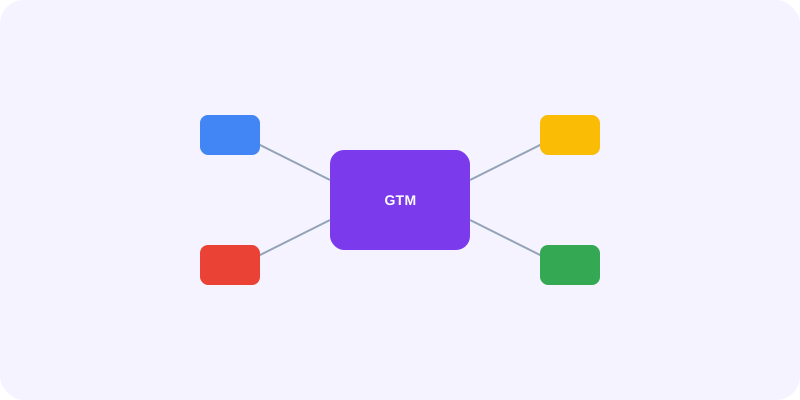
Instead of adding tracking codes — like Analytics or an ad pixel — directly into a website's code every time something changes, you install one small snippet from Tag Manager once. After that, you can add, edit, or remove individual tracking tags through a simple dashboard, without touching the website's actual code again.
What You Can Actually Do With It
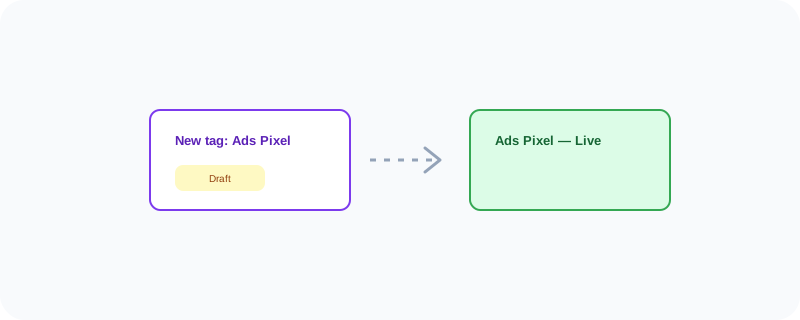
- Add or update tracking tags without editing site code each time
- Test changes safely in a preview mode before publishing them live
- Manage every tracking tag from one central dashboard
- Roll back to a previous version if something breaks
Who Is This For?
Marketing teams who need to add or adjust tracking regularly without waiting on developer time. Developers who want to hand off tag management to a non-technical teammate safely.
How to Start Using It
- Go to tagmanager.google.com
- Create a container for your website
- Add the provided snippet to your site's code once
- Add and manage individual tags through the dashboard going forward
A Simple Way to Think About It
Think of it as a single switchboard for every tracking script on your site, so adding a new one doesn't mean touching the wiring behind the wall each time.
Want to see more Google marketing tools? Browse the full Google Universe directory, or read our simple guide to Google Analytics next.
📣 Share this article