
Google Pics Explained Simply — Creating and Editing Images Without Leaving Your Doc
Google Pics is Google's new AI image tool built right into Docs, Slides, and Drive, so you never have to switch to a separate design app.
🌐 Translate this article:
⚡ Powered by Google Translate · Original content preserved
Needing an image for a presentation usually means leaving your document, opening a separate design app, then coming back to paste it in. Google Pics is built to remove that back-and-forth entirely.

What It Actually Does
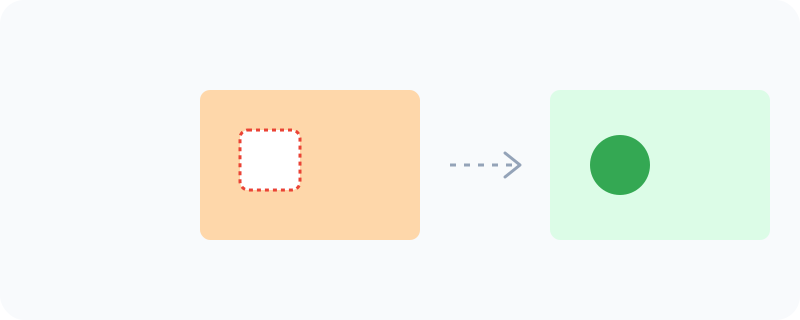
Google Pics is an AI image generation and editing tool built directly into Docs, Slides, and Drive. You can create an original image from a description, or edit an existing photo with precise control — moving an object, resizing something, or changing the text inside an image — without exporting to another app first.
What You Can Actually Do With It
- Generate an original image straight inside Docs, Slides, or Drive
- Move, resize, or transform individual objects within an image
- Edit or translate text that appears inside an image
- Save results directly to Drive for easy reuse later
Who Is This For?
Anyone building a presentation, document, or marketing asset inside Workspace who needs a quick image without switching tools. Worth knowing upfront: as of now, Google Pics is in early testing through Workspace Experiments, so it isn't yet available to everyone — you can sign up to be notified when it opens up more broadly.
How to Start Using It
- Go to workspace.google.com/products/pics
- Sign up for Workspace Experiments to get early access
- Once available, open Pics directly from Docs, Slides, or Drive
- Describe the image you want, or upload one to edit
A Simple Way to Think About It
Think of it as a design tool that lives inside the document you're already writing, instead of a separate app you have to open, edit in, and export from.
Want to see more Google AI tools? Browse the full Google Universe directory, or read our simple guide to Google Stitch next.
📣 Share this article