
Google Lens Explained Simply — Searching With a Photo Instead of Words
Google Lens lets you point your camera at something and search for it instantly, without typing a single word. Here's how it works.
🌐 Translate this article:
⚡ Powered by Google Translate · Original content preserved
Sometimes you see something you want to know more about, but you have no idea what to type into a search bar. Google Lens solves that by letting the photo do the searching.

What It Actually Does
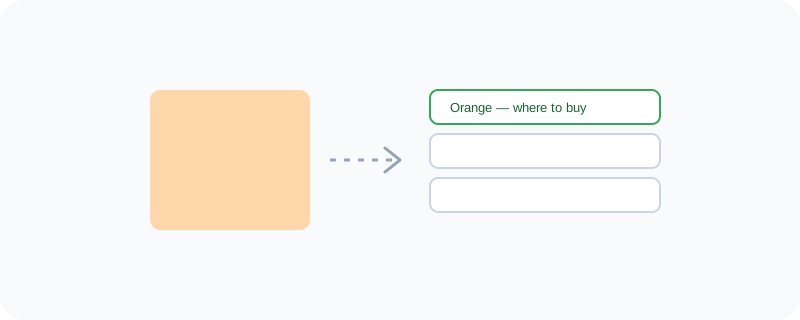
Point your phone's camera at almost anything — a plant, a product, a page of text — and Lens analyzes the image to tell you what it is, or pulls up related search results. It can also read and translate text straight from what the camera sees, and it can search for a product you photographed to help you find where to buy it.
What You Can Actually Do With It
- Identify plants, animals, landmarks, and objects from a photo
- Copy or translate text directly from an image
- Search for where to buy a product you've photographed
- Solve a math problem by pointing your camera at it
Who Is This For?
Anyone who's ever wanted to know "what is this" about something in front of them. Shoppers comparing prices on something they saw in person. Students who want quick help with a printed problem.
How to Start Using It
- Open the Google app or Google Photos, and tap the Lens icon
- Point your camera at the object, text, or product
- Review the results Lens brings up
- Tap "Translate" or "Shopping" for a more specific type of result
A Simple Way to Think About It
Think of it as showing something to a very knowledgeable friend and asking "what is this," except the friend is your camera.
Want to see more Google AI tools? Browse the full Google Universe directory, or read our simple guide to Google Assistant next.
📣 Share this article